Privacy
Your Photos Reveal Where You Live: How to Remove Location from a Photo
Most phones save the exact GPS position in every photo. Here is how to check whether a photo gives away a location, remove it before you share, and stop your camera from adding it, on iPhone, Android and a computer.
Every time you take a photo, your phone can quietly write a few extra lines into the file: the date and time, the phone model and, if the camera is allowed to use your location, the exact GPS coordinates of where you stood. You don’t see any of it in the picture. But anyone who receives the original file can read it in seconds and drop a pin on a map.
For a photo of a sunset, that hardly matters. For a photo taken at home, of your children, or of something you are selling from your living room, it can give away your address.
The short answer
Check the photo with an EXIF viewer: if it shows a location, download a clean copy with remove location from photo before you share the original file. Both run in your browser, so the photo is never uploaded. Then switch off location in your camera settings so new photos don’t get one (steps for iPhone and Android below).
What a photo can reveal about you
The hidden data in a photo is called metadata, and the most common kind is EXIF. A photo straight from a phone camera can contain:
| Hidden detail | What it tells someone |
|---|---|
| GPS latitude and longitude | The spot where the photo was taken, often to within a few metres |
| Altitude, sometimes direction | Which floor or hillside, and which way the camera was pointing |
| Date and time, to the second | When you were there |
| Phone or camera model | The device you use |
| Camera serial number (some cameras) | Links every photo taken with that camera together |
| Small preview image | Can show the photo before you cropped it |
Put a few photos together and the pattern is clear: the photos taken at night and on weekends usually point to home.
When your location gets shared, and when it doesn’t
Most big social networks remove this data from the copy that other people see, so a photo posted to a feed is usually not the problem. The original file is. Location data commonly travels with:
- Email attachments and cloud storage links (a shared folder, or a file anyone with the link can open).
- Photos sent as a file or document in chat apps. That option sends the original file unchanged, with all its hidden data.
- Marketplaces, classified ads and forums that don’t clean uploads.
- Your own website or blog, where images are often published exactly as uploaded.
- Photos you send to a business: a landlord, an insurer, a repair shop, a client.
If you’re not sure how a site treats your photos, assume the original file is published and clean it first.
How to check a photo for location data
- Use the original file, from your camera roll or your computer. A photo saved back from a social app has often been stripped already, so it isn’t a fair test.
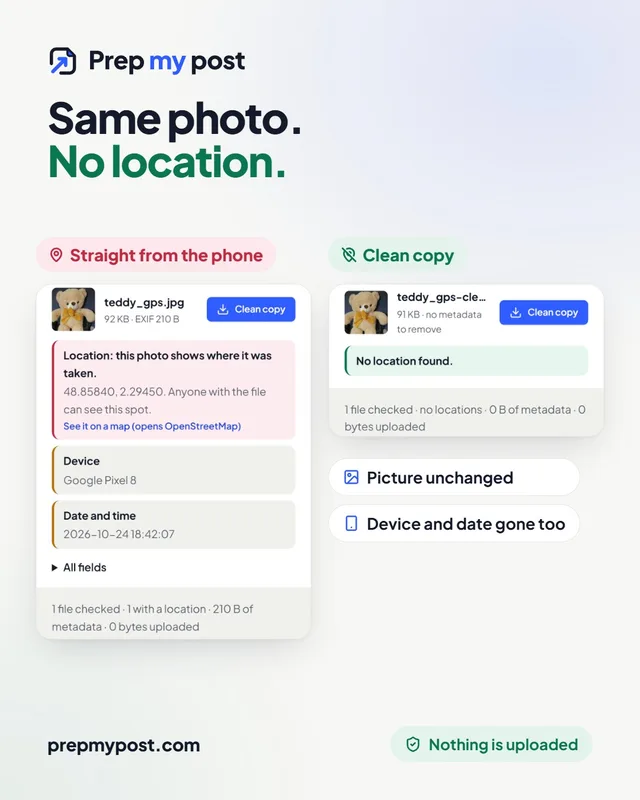
- Open the EXIF viewer or remove location from photo and drop the photo in, or several at once.
- Read the result. A red Location row shows the coordinates and a link to see the spot on OpenStreetMap (it only opens if you click it). A green No location found means the file has none.
- Look at the other rows too: device, date and time, and a hidden preview image if there is one. All fields lists everything in the file.
How to remove the location from a photo
In your browser (any phone or computer)
- Open remove location from photo.
- Drop in one photo or many. JPG, PNG and WebP all work.
- Tap Clean copy for one photo, or Download clean copies (.zip) for all of them.
The clean copy leaves out the location and the rest of the personal metadata: device, serial numbers, dates, editing history, captions and comments. Two things stay by default because removing them causes problems: the colour profile (without it, colours can look washed out) and the rotation (without it, phone photos can turn sideways). The picture data itself is copied byte for byte, so there is no quality loss. If you want every last field gone, use remove EXIF data and untick both.
On an iPhone
- For one share: in Photos, select the photos, tap Share, then Options at the top and turn off Location. “Location Not Included” appears when it’s off. This has to be done each time you share.
- For a photo in your library: open it, tap the More button, then Adjust Info → Adjust Location → No Location.
- On a Mac: in Photos, select the photos and choose Image → Location → Hide Location.
On Android
Android phones differ, so check your own camera app’s settings. On a Google Pixel, open the Camera app, tap Settings, then More settings, and turn off Save location. On a Samsung Galaxy, open the Camera app’s settings and turn off Location tags.
If you use Google Photos, know its limit: Google says a location that your camera saved can’t be removed in Google Photos, and that its location settings don’t affect photos you share outside the app. To clean the file itself, download it and use a tool like ours.
On Windows
Right-click the photo, choose Properties → Details, then Remove Properties and Personal Information, and let it create a copy with all possible properties removed. Check the copy afterwards with an EXIF viewer: what Windows can remove depends on the file type.
Stop your phone from adding a location
Cleaning photos one by one works, but it’s easier not to save the location in the first place.
- iPhone: Settings → Privacy & Security → Location Services → Camera → Never.
- Pixel: Camera → Settings → More settings → turn off Save location.
- Samsung Galaxy: Camera → Settings → turn off Location tags.
- Other Android phones: look for “location”, “GPS” or “geotag” in the camera app’s settings.
This only affects new photos. Photos you’ve already taken keep their location, so clean the old ones before you share them. If you like seeing your photos on a map in your gallery, you can leave the setting on and simply clean the ones you share.
The location in the picture itself
Removing the GPS data doesn’t hide what the photo shows. A house number, a street sign, a school logo on a uniform, a car number plate or the view from your window can give away the same information. Before you post, look at the background, and cover anything that identifies the place with blur image or censor image. Those tools also run in your browser.
Documents carry hidden data too
Photos aren’t the only files that say more than they show. A PDF usually stores an author name (often the name on the computer that made it), the app it came from, the dates it was created and changed, and sometimes names on comments. Check one with the PDF metadata viewer and clean it with remove metadata from PDF before you send a CV, a contract or a report.
Why we built the checker to run in your browser
A tool that cleans private data from your photos shouldn’t need a copy of them. Ours reads the file on your own device and builds the clean copy there; nothing is sent to our servers. You can check that: once the page has loaded, switch on airplane mode and drop in a photo. It still works. The summary line under the results even counts it for you: 0 bytes uploaded.
For more on what browser-based tools do and don’t send, read Do online tools upload your files?.
The short version
- Phone photos often carry the exact GPS spot where they were taken, plus the date, time and device.
- Feeds on big social networks usually strip it; original files sent by email, cloud links, chat “documents”, marketplaces and websites often don’t.
- Check a photo with the EXIF viewer, clean it with remove location from photo, and turn off location in your camera for new photos.
- Remember what’s visible in the picture, too. Nothing is uploaded, your data stays yours, and you’re in control.
Frequently asked questions
Do photos store your location?
Often, yes. If location access is on for the camera app, most phones save the GPS coordinates of the spot where the photo was taken inside the file, accurate to a few metres. Anyone who receives the original file can read them.
How do I check if a photo has a location?
Open it in an EXIF viewer. Ours shows a red Location row with the coordinates and a map link if the photo has one, or 'No location found' if it doesn't. The photo is read in your browser and isn't uploaded.
Do Instagram and Facebook show my photo's location?
Big social networks generally remove the hidden location data from the copy other people see. The risk is the original file: email attachments, cloud links, your own website, marketplaces, forums and photos sent as a file or document in chat apps can carry it.
Does removing the location reduce the photo's quality?
Not with our tool. It copies the picture data byte for byte and only leaves the hidden data out, so the photo looks exactly the same and the file usually gets a little smaller.
If I turn off location in the camera, are my old photos safe?
No. The setting only affects new photos. Photos you took before still carry their location, so clean them before you share the original files.