
How it works
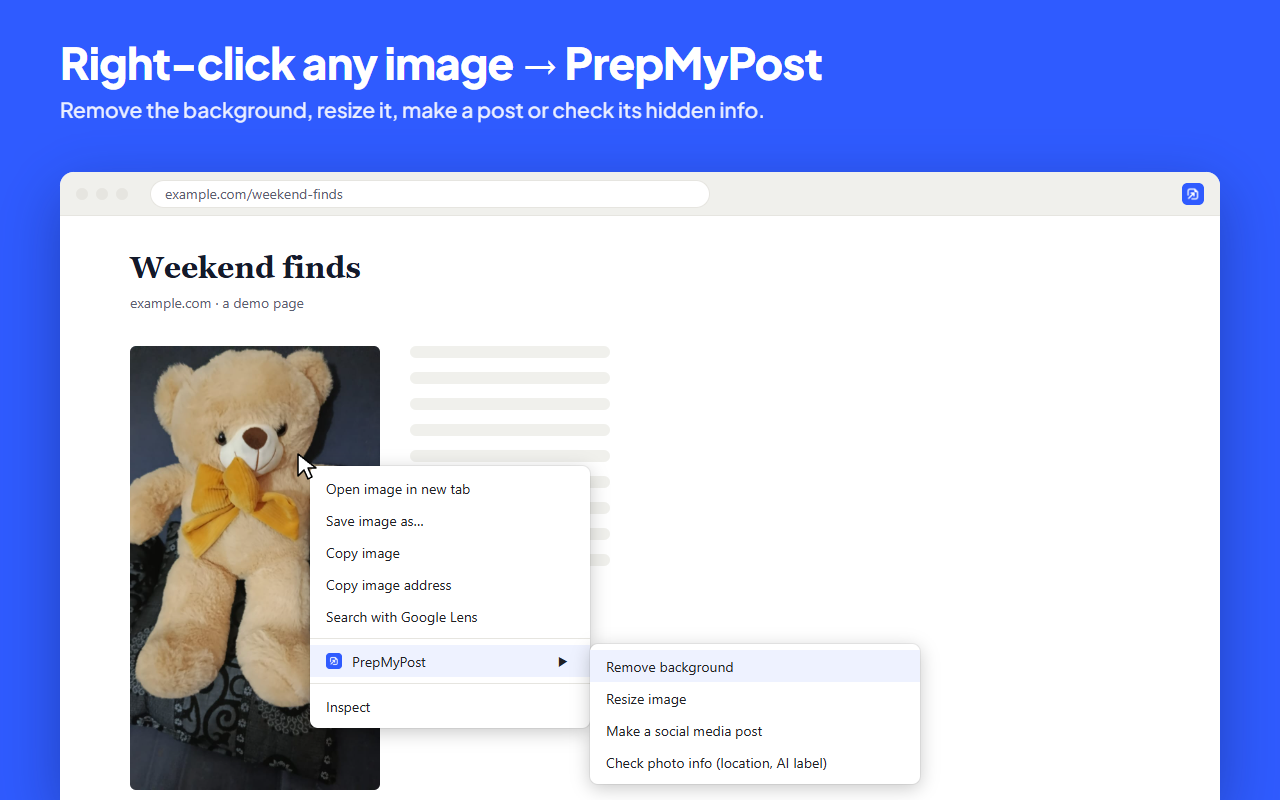
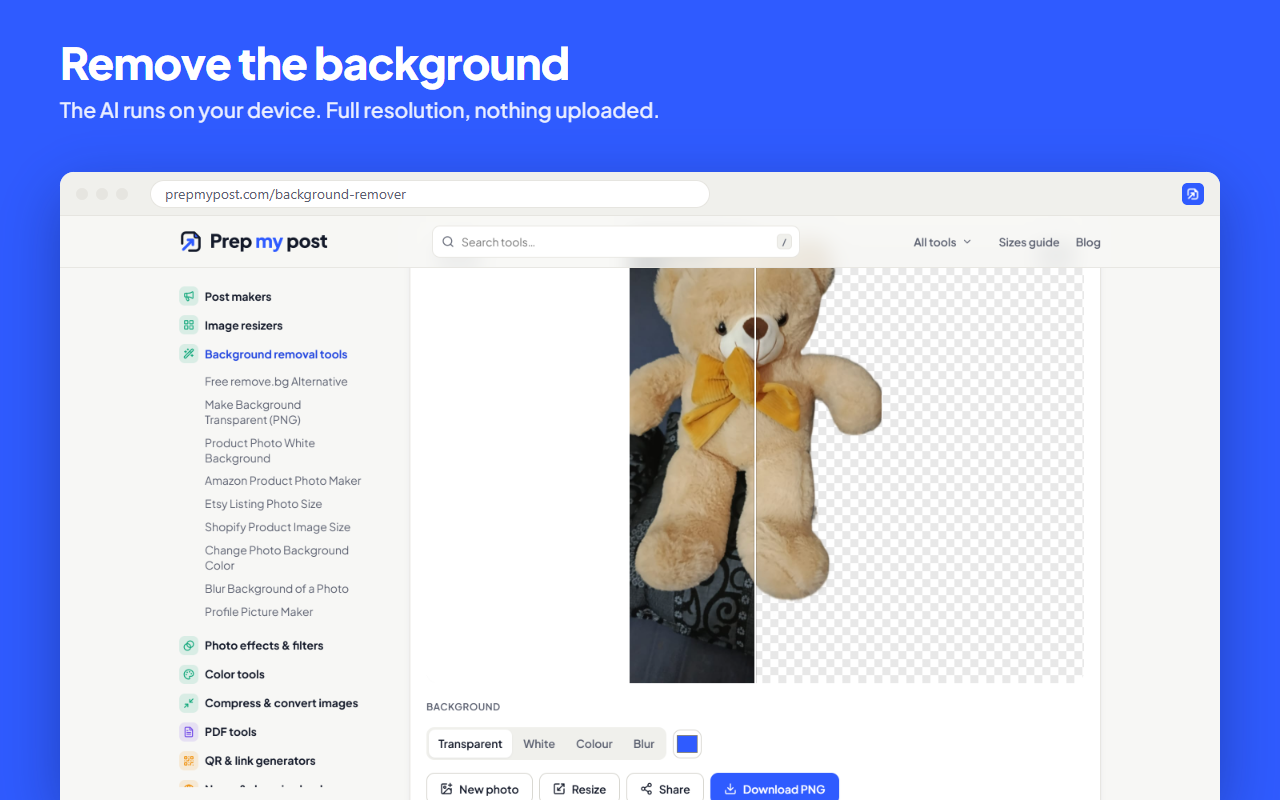
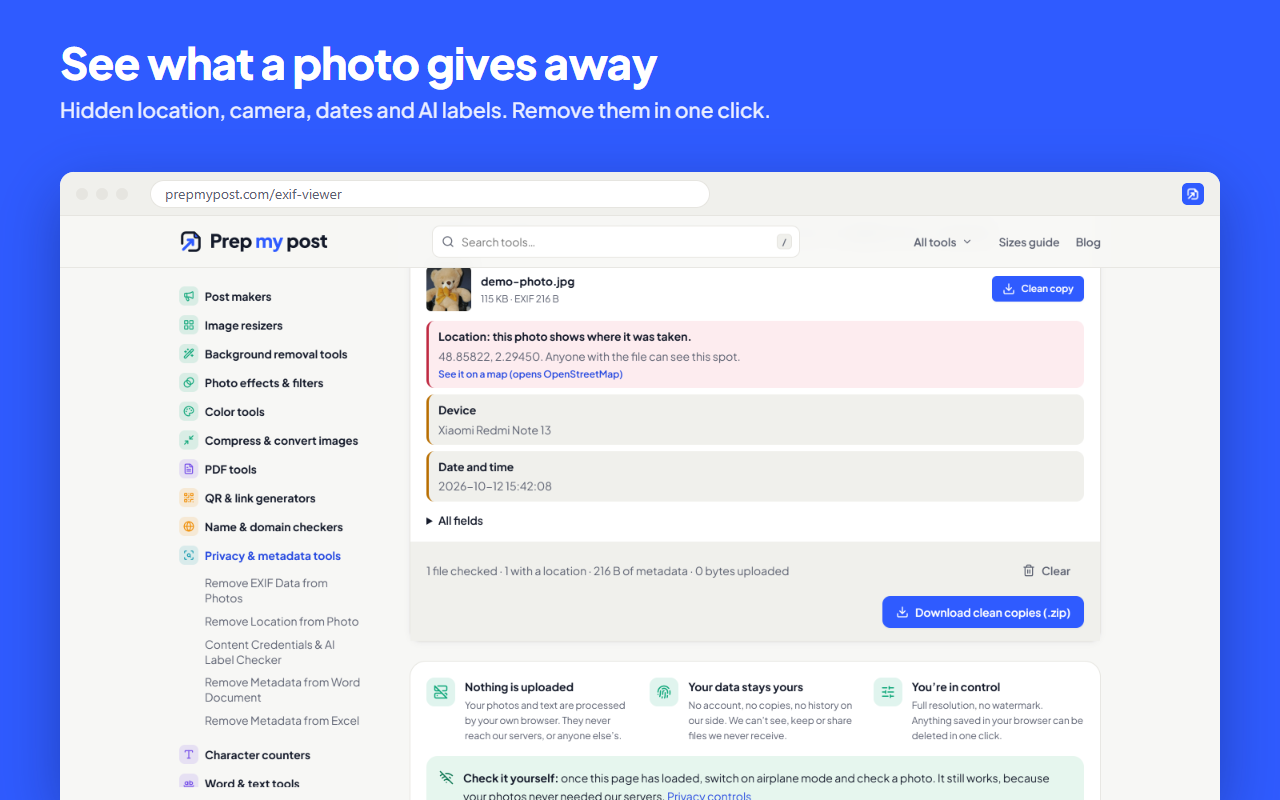
The extension adds one item, PrepMyPost, to Chrome’s right-click menu on images. Choose a tool and it opens on prepmypost.com in a new tab with your image already loaded: no saving to your downloads folder, no finding the file again, no upload. The original file is passed on untouched, so the photo info tool sees the real location and camera details, and the background remover works at full resolution.
Permissions, in plain words
- Right-click menu (
contextMenus): adds the PrepMyPost item on images. - The tab you clicked (
activeTab,scripting): reads an image from the page you right-clicked, on that click only. - prepmypost.com: hands the image to the tool page.
- Other sites, only when asked: if the image is hosted elsewhere, Chrome asks you for that one site the first time. Nothing is requested at install.
The extension has no analytics, no ads and no browsing history, and it stores nothing once the image has been handed over. The full details are on the privacy page.
Tips
- Use it on your own photos in Google Photos, Drive, a shop admin or your website to get them ready for a post without downloading first.
- Before you repost a photo, run “Check photo info” on it: it shows whether the file still carries a GPS location.
- If an image can’t be read (some sites block it), save it with right-click → Save image as and open it in the tool instead.
- Only use images you have the right to use. Removing a background or resizing doesn’t change who owns a photo.
Frequently asked questions
Is the extension free?
Yes. It is free, with no account, no watermark and no ads inside the extension. The tools it opens are the same free tools on prepmypost.com.
Is my image uploaded?
No. The extension reads the image you right-clicked inside your browser and hands it to the tool page, which also runs in your browser. The image is not sent to us or to anyone else. The only network request is your browser fetching the image again from the site that shows it.
Why isn’t it on the Chrome Web Store yet?
It has been prepared for the store and is waiting to be published. Until then you can install the same package by hand with the steps on this page. When the store version is live, this page will link to it.
Does it update by itself?
Not when you install it by hand: Chrome only updates extensions that come from the store. Come back to this page for a newer version, or switch to the store version once it is listed. Removing the old one and loading the new folder keeps everything working, because the extension stores nothing.
Why does Chrome ask for permission for a website?
Most images are hosted on another site (an image server or CDN). To read one, the extension asks Chrome for that site’s permission the first time you right-click an image from it. It uses the permission only to read images you right-click, and you can remove it at any time in Chrome’s extension settings.
Does it work in Edge, Brave or Opera?
They are built on the same engine as Chrome and can load an unpacked extension the same way: open the browser’s extensions page, turn on developer mode and choose “Load unpacked”. It needs Chrome 116 or newer (or a browser based on it).
Can I delete the folder after installing?
No. Chrome runs a hand-installed extension from the folder you picked, so keep it where it is. If you move or delete it, Chrome turns the extension off.
Does it work on phones?
No. Chrome on Android and iPhone doesn’t run extensions. On a phone, open the tools on prepmypost.com directly: they work the same way.