Guides
How to Resize a Photo and Signature for an Online Form (Exact Pixels and KB)
Visa, passport, exam and job portals reject photos for reasons that are rarely explained: a few pixels off, 2 KB too big, or too small. Here is what the numbers on the form actually mean, real examples from four countries, and how to get it right the first time.
It’s late, the application closes tomorrow, and the upload box keeps saying the same thing: invalid file. No reason, no hint. You’ve already taken the photo three times.
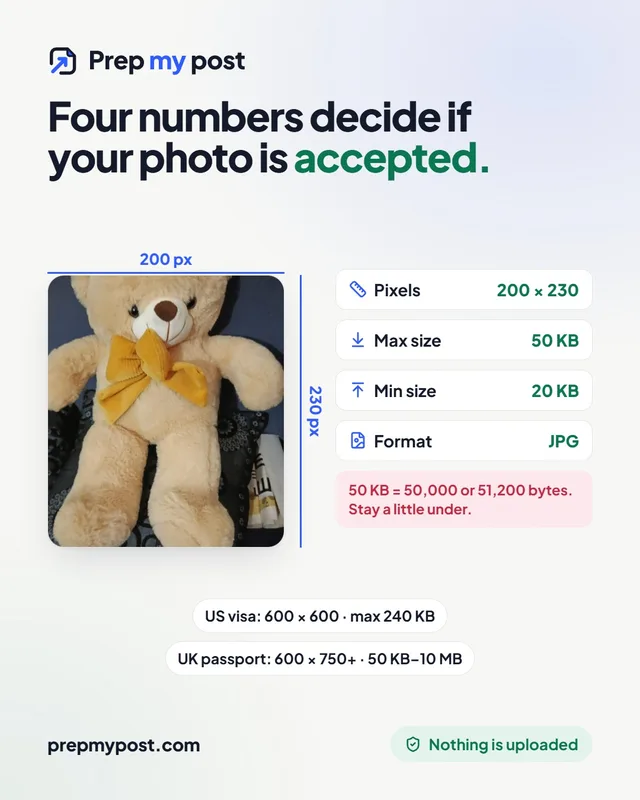
Almost every rejected upload comes down to four numbers: width, height, file size and format. Get those right and most portals accept the file on the first try. This guide explains what each number means, shows real requirements from four countries, and walks through doing it in a couple of minutes, without uploading your photo to yet another website.
The short answer
- Find the four numbers in the form’s instructions: pixel size (e.g. 600 × 600), maximum KB (e.g. 240), sometimes a minimum KB, and the format (almost always JPG).
- Open the resize photo for online form tool and type those numbers in.
- Drop your photo, drag it so your face is centred, and download.
- Check the result against the form before you upload: the tool’s checklist shows the final pixels and KB.
For the signature, do the same with the signature resizer, which also turns grey paper white and keeps the ink sharp.
What the numbers on the form mean
Pixels (e.g. 200 × 230). The width and height of the image. This is not the same as centimetres: a photo can be 200 × 230 pixels and print at any size.
KB (e.g. “maximum 50 KB”). The size of the file on disk. It depends on the pixels and on how strongly the JPG is compressed. Two photos with the same pixels can be 30 KB or 300 KB.
Minimum KB (e.g. “between 20 and 50 KB”). Some portals reject files that are too small, usually to stop people uploading a blurry thumbnail. This catches people out after they’ve compressed too hard.
DPI (e.g. “300 DPI”). A number stored inside the file that tells a printer how large to print it. It doesn’t change the pixels or the KB. Set it if the form asks; ignore it if it doesn’t.
Millimetres (e.g. 35 × 45 mm). A print size. If a form gives only millimetres and asks for a digital file, you need to turn them into pixels:
| Print size | At 254 DPI (10 pixels per mm) | At 300 DPI |
|---|---|---|
| 35 × 45 mm (common passport shape) | 350 × 450 px | 413 × 531 px |
| 51 × 51 mm (2 × 2 inch) | 510 × 510 px | 600 × 600 px |
That is why “350 × 450” turns up on so many forms: it’s simply the 35 × 45 mm passport shape at 10 pixels per millimetre. And the 600 × 600 square of a US visa photo is the 2 × 2 inch photo at 300 DPI.
The 1,000 vs 1,024 trap
Here is a reason for rejection that nobody tells you about. “50 KB” can mean two slightly different things:
| How “KB” is counted | 50 KB is |
|---|---|
| 1 KB = 1,000 bytes (many websites) | 50,000 bytes |
| 1 KB = 1,024 bytes (Windows, older systems) | 51,200 bytes |
The gap is 1,200 bytes, about 2.4%. Windows counts in 1,024s and rounds up, so a file it shows as “49 KB” can be up to 50,176 bytes, which a portal counting in thousands rejects as over 50 KB. The safe rule: stay a little under the maximum and a little over the minimum. Our tools count both ways and only pass a file that fits under either rule.
Real examples from four countries
Requirements change, so always follow the form in front of you. These show how different they can be:
| Application | Pixels | File size | Other rules |
|---|---|---|---|
| US visa (DS-160) | Square, 600 × 600 to 1200 × 1200 | JPG, at most 240 KB | US State Department photo rules |
| UK passport (online) | At least 600 wide × 750 tall | 50 KB to 10 MB | Taken in the last month, plain light background, not edited; GOV.UK says not to crop a photo taken on your own device |
| Canada visitor visa (printed photo) | 35 × 45 mm frame | n/a | Head 31 to 36 mm from chin to crown, taken in the last 6 months |
| Indian exam portals | Varies by exam (200 × 230 is common) | Photo often 20 to 50 KB, signature often 10 to 20 KB | Check the exam notice: some portals now take the photo live by webcam |
Two things stand out. First, the minimum matters as much as the maximum: the UK portal won’t take a file under 50 KB. Second, some portals want you to crop and others explicitly don’t, so read the instructions before you trim anything.
Why your phone photo needs so much shrinking
A typical phone photo is 12 megapixels (4000 × 3000) and 3 to 5 MB. A 200 × 230 form photo is 46,000 pixels, less than 0.4% of the original. A 50 KB limit means the file has to lose around 99% of its size.
That’s why “compress” alone often fails: squeezing a 12 MP photo into 50 KB without resizing it first leaves a blocky, smeared face, and some portals reject it as unclear. The better order is:
- Crop to the shape the form wants, with your face centred.
- Resize to the exact pixels.
- Then compress to just under the KB limit, at the highest quality that fits.
The form photo tool does all three in that order, in one step.
Photos that get rejected (and how to avoid it)
| Rejected because | Fix |
|---|---|
| Wrong pixel size | Type the exact numbers from the form; don’t trust “about” sizes |
| Over the KB limit | Stay a few KB under it (see the 1,000 vs 1,024 trap) |
| Under the minimum KB | Raise the quality, or use increase image size in KB |
| PNG instead of JPG | Download as JPG; forms that say “JPEG” mean the same thing |
| Face too small or off-centre | Drag the photo so your head fills the frame as the form describes |
| Busy or dark background | Stand in front of a plain, light wall in daylight |
| Edited appearance | Don’t use beauty filters; official portals reject altered photos |
| Old photo | Many forms set a limit: the UK asks for one from the last month, Canada the last 6 months |
Getting the signature right
Signatures fail for different reasons: grey paper, shadows, a tilted page, and lots of empty space around a thin line of ink. A few habits help:
- Sign on plain white paper with a dark pen, a bit larger than usual. Thin, light strokes can disappear when the image is shrunk to 140 × 60 pixels.
- Photograph it flat, in daylight, holding the phone straight above the page.
- Let the tool clean it up. The signature resizer evens out the light, turns the paper pure white, crops to the ink and sizes it. Because the result is mostly white, it usually comes in far under a 20 KB limit.
- Need it smaller still? Compress image to 20 KB gets any JPG under that common limit.
Keep your ID photo off other people’s servers
A photo for a visa or passport is a clean, front-facing picture of your face, exactly the kind of image that’s
valuable to someone else. It often travels with a file name like firstname-lastname-passport.jpg.
All the tools mentioned here work in your browser: the photo is resized and compressed on your device and downloaded straight back to it. You can check: after the page has loaded, switch on airplane mode and resize another photo. It still works. And if the photo came straight from your phone, the original may also contain the GPS location where it was taken; see how to remove location from a photo.
The short version
- Every form comes down to four numbers: pixels, maximum KB, minimum KB and format.
- Millimetres are a print size: 35 × 45 mm is 350 × 450 px at 10 pixels per mm.
- “50 KB” can mean 50,000 or 51,200 bytes, so stay a little under the limit.
- Crop, then resize, then compress, in that order.
- Nothing is uploaded, your data stays yours, and you’re in control.
Sources: US State Department photo requirements; GOV.UK “Photos for passports”; IRCC temporary resident visa photo specifications (Canada). Requirements change: always follow the instructions on your own form.
Frequently asked questions
How do I resize a photo to exact pixels and KB for a form?
Use a tool that sets both at once: type the width, height and maximum KB from your form, drop the photo, centre your face and download. PrepMyPost's resize photo for online form tool does this in your browser, and checks the size and KB before you download.
Why does the portal say my photo is too big when it's under the limit?
Some sites count 1 KB as 1,000 bytes and others as 1,024 bytes. A file that your computer shows as 49 KB can be 50,100 bytes, which a 50 KB limit counted in thousands rejects. Aim for a little under the limit.
How do I increase a photo's size in KB?
Save it at a higher JPG quality first. If it's still too small, a tool can add blank padding inside the file, which every viewer ignores. PrepMyPost's increase image size in KB tool does both.
What does DPI mean on a form?
DPI is a number stored in the file that says how big to print it. It doesn't change the pixels. If the form asks for a DPI value, set it; otherwise the pixel size and KB are what count.
Is it safe to resize my passport photo online?
It is if the tool works in your browser. A photo for an official form shows your face, and often your name is in the file name. Browser-based tools resize it on your device, so it is never uploaded to the tool's website.