Guides
Instagram Grid Size: How to Make a Grid Post That Lines Up on the 3:4 Grid
Instagram's profile grid shows every post as a 3:4 rectangle now, so grids cut into squares no longer join up. Here are the sizes that work, how much of each post shape the grid hides, the posting order, and how to make grids, seamless carousels and panoramas that line up.
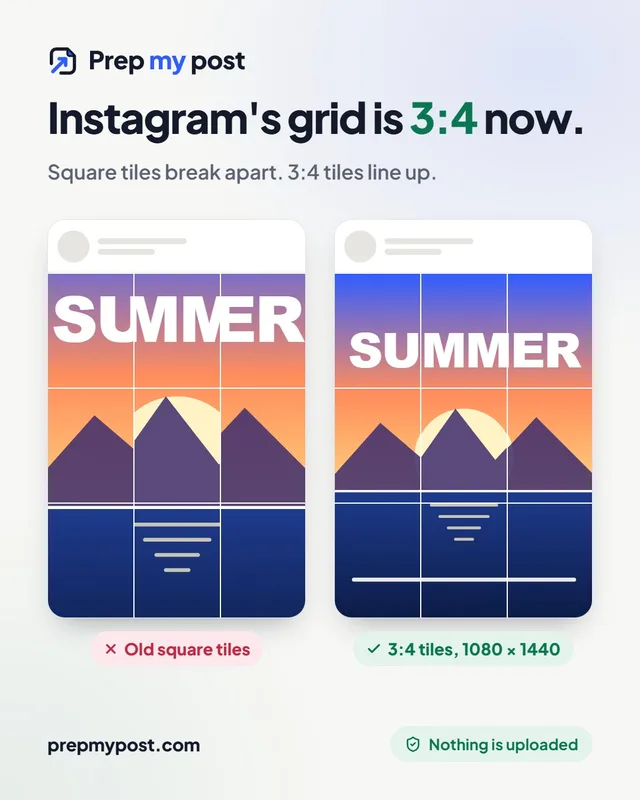
For years an Instagram profile was a wall of squares, and grid posts (one big picture cut into 3, 6 or 9 tiles) were cut into squares to match. Since 2025 the profile grid shows every post as a 3:4 portrait rectangle instead. A grid made of square tiles now loses the left and right edge of every tile, and the picture no longer joins up.
The fix is simple once you know the new numbers.
The short answer
Make every grid tile 1080 × 1440 pixels (3:4). The profile grid has 3 columns of 3:4 tiles, and Instagram’s Help Center says photos between 1.91:1 and 3:4 keep their resolution at 1080 pixels wide. A 3:4 tile is therefore shown whole in the feed and fills its place on the grid exactly. Post the tiles from the bottom right to the top left.
The Instagram grid maker cuts a photo into these tiles in your browser and numbers them in posting order.
How much of each post the grid shows
The grid shows the middle 3:4 of each post. Whatever is wider than that is cut off at the sides on your profile (it still shows in full in the feed). You can adjust the thumbnail of a post in the app, but a grid post depends on every tile being cut the same way, so it is easier to start with the right shape.
| Post shape | Size | What the profile grid hides |
|---|---|---|
| Portrait 3:4 | 1080 × 1440 | Nothing: the whole photo shows |
| Portrait 4:5 | 1080 × 1350 | About 3% of the width on each side |
| Square 1:1 | 1080 × 1080 | 12.5% of the width on each side |
| Landscape 1.91:1 | 1080 × 566 | About 30% of the width on each side |
That is why a square grid falls apart: each tile loses an eighth of its width on both sides, so the edges that were supposed to meet are gone. A 4:5 post loses only a thin strip, which is fine for single posts but still shows as a small jump in a grid. For single posts, the Instagram image resizer makes 3:4 and 4:5 versions of a photo in one go.
How to make a grid post that lines up
- Pick the photo. It should be at least 3,240 pixels wide (3 tiles × 1080) so each tile stays sharp. Most phone photos are bigger than that.
- Choose the size of the grid. 3 posts make one row, 9 posts the classic 3 × 3 square, and up to 18 posts fill six rows. More rows make a taller grid, so a portrait photo suits 9 or 12 posts.
- Choose the part of the photo. Open the grid maker, add the photo and drag the frame or zoom in. If the photo is wide and you don’t want to lose the sides, choose Whole photo: the picture is kept complete on a blurred or coloured background.
- Decide about the gaps. Instagram draws a thin white line between posts. By default the tiles are cut edge to edge and the picture continues behind the lines like a window frame. If the picture has straight lines or text across tiles, tick Gapless: the thin strip under each line is left out, so lines and letters stay aligned.
- Download and post in order. The tiles come in a ZIP named 01, 02, 03… Post 01 first: it is the bottom-right tile. Each new post pushes the others one place along, and the last one lands at the top left.
Three things that break a grid
- Pinned posts. Pinned posts sit at the top left and push everything else along. Unpin them before you check the grid, or post the grid as full rows of 3 so the columns stay aligned.
- Posting something in between. One extra post shifts every tile by one place. Post all the tiles in one go.
- Instagram’s crop. When you add each tile, keep its original 3:4 shape instead of letting the app crop it to a square.
Each tile also appears on its own in your followers’ feeds, so give it a caption that makes sense alone, such as “Part 3 of 9. See the whole picture on my profile”. The grid maker writes one for every post, ready to copy.
Plan the grid before you post
A grid post sits next to your existing posts, and from then on every new post moves it along. Before you publish, put the tiles and your last few posts into the Instagram grid preview. It shows them on a 3:4 profile grid exactly as Instagram does, lets you drag them into a different order, and gives you the photos renamed in posting order. It never asks for your Instagram login, because you add the photos yourself.
Grid or carousel?
A grid post is made for your profile page. In the feed, your followers see one tile at a time, which can look odd on its own. If you want people to see the whole picture in one post, cut it into a seamless carousel instead: slides placed side by side, so the image carries on as people swipe.
- For a wide photo, the Instagram carousel splitter cuts 2 to 10 slides in square, 4:5 or 3:4, with a swipe preview.
- For a panorama, the Instagram panorama splitter picks the number of slides that keeps the full height, so nothing is squashed or cropped away.
Every slide in a carousel takes the shape of the first one, so make all slides the same size. The first slide is also what appears on your profile grid, as a 3:4 tile.
Other ways to split a picture
Not every split is for Instagram. To cut a poster into printable pages, a picture into a puzzle or a sprite sheet into frames, the image splitter cuts any image into up to 10 × 10 equal tiles at full resolution, as JPG, PNG or WebP.
Your photo stays on your device
All of these tools cut your photo in your browser. The picture is opened, split and zipped on your own phone or computer, and nothing is uploaded to our servers. You can check it: once the page has loaded, switch on airplane mode and split a photo. It still works, because your photo never needed our servers.
Frequently asked questions
What size is an Instagram grid post?
1080 × 1440 pixels, a 3:4 portrait. The profile grid shows each post as a 3:4 rectangle, and Instagram's Help Center says photos between 1.91:1 and 3:4 keep their resolution at 1080 pixels wide, so a 3:4 tile shows whole in the feed and fills its spot on the grid.
Why doesn't my Instagram grid line up any more?
It was probably cut into squares for the old square grid. The grid now shows the middle 3:4 of each post, which cuts 12.5% off each side of a square. Every tile loses its edges, so the picture no longer joins up. Cut the picture into 3:4 tiles instead.
In what order do I post the tiles of a grid?
Bottom right first and top left last, because the newest post always appears at the top left of your profile. A good grid maker numbers the files in that order, so you post 01, then 02, and so on.
Should I use a grid post or a carousel?
A grid post makes your profile look striking, but each tile appears alone in your followers' feeds. A seamless carousel keeps the whole picture in one post that people swipe through. For a single wide photo or a panorama, a carousel usually works better.
Do I have to upload my photo to a website to split it?
No. A browser-based splitter cuts the photo on your own phone or computer. PrepMyPost's grid maker, carousel splitter and image splitter work this way: nothing is uploaded, and they keep working in airplane mode once the page has loaded.