How it works
How to Remove a Background Without Uploading Your Photo
Most background removers send your photo to a server. You can do the same job with an AI that runs in your own browser, at full resolution and for free. Here are the steps, what to expect on a phone or a computer, and how to check that nothing was uploaded.
Removing a background used to mean either learning photo-editing software or uploading your picture to a website that does it on its server. The second option is quick, but your photo, which might show your face, your children, your home or a product that isn’t launched yet, ends up on a computer you don’t control.
There is now a third way: an AI background remover that runs inside your browser. The photo never leaves your phone or laptop, and the result can be just as clean.
The short answer
Open a browser-based background remover, such as our free background remover, choose your photo and wait a few seconds. The AI runs on your own device’s processor or graphics card. You download the result directly from your browser: a transparent PNG, or a JPG on white, a colour or a blurred version of the original.
The only thing downloaded is the AI model itself, once, so your device can do the work.
Why most background removers upload your photo
Cutting a person or product out of a photo is done by an AI model. Running that model takes a lot of computing power, so most tools run it on their own servers: you upload the photo, their server removes the background, and you download the result. Many also give you a small preview for free and charge for the full-resolution file, because every photo costs them server time.
A browser-based remover turns that around. Instead of your photo travelling to the AI, the AI travels to you. Modern browsers can run AI models using your device’s graphics card (through a technology called WebGPU) or its processor. That has three side effects:
- Your photo stays on your device. There is no copy anywhere else to be kept, leaked or reused.
- Full resolution is free. Your device does the work, so a 12-megapixel result costs the website nothing.
- It works offline. Once the model is saved in your browser, you don’t need a connection at all.
Step by step: remove a background in your browser
- Open the tool. Go to the background remover on your phone or computer. Chrome, Edge, Safari and Firefox all work.
- Choose a photo. Tap the box or drag a photo onto it. JPG, PNG and WebP work in every modern browser.
- Get the AI (first time only). The tool tells you how big the model is for your device and asks before it downloads anything: about 5 MB on phones and 47 to 75 MB on computers. It is saved in your browser, so next time it starts straight away.
- Wait a few seconds. The page shows whether it is using your graphics card or your processor. On a phone or an older computer this takes longer than on a computer with a fast graphics card, but your photo still never leaves the device.
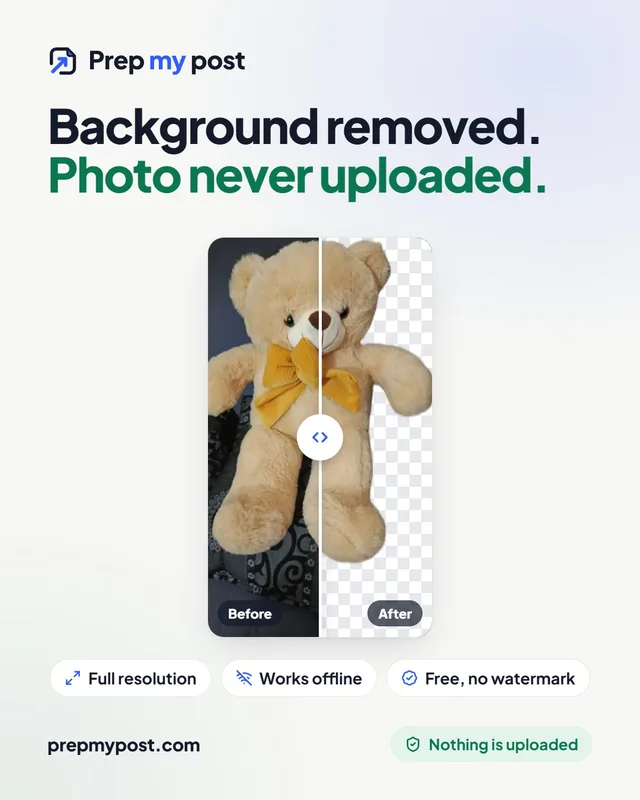
- Pick a background. Keep it transparent, or choose white, any colour, or a blurred version of the original photo. Drag the slider on the image to compare before and after.
- Download. Transparent results download as a PNG; results with a background download as a JPG. Both are at the full size of your original photo.
What to expect on a phone and on a computer
Your device decides which AI model you get, so the tool runs smoothly instead of freezing the page.
| Your device | AI model | Download (once) |
|---|---|---|
| Computer with a recent graphics card | BiRefNet (full model) on the graphics card | about 73 MB |
| Other computers | Quick model (IS-Net) | about 47 MB |
| Other computers, “Sharper edges (HD)” button | BiRefNet (full model) on the processor | about 75 MB |
| Phones | Light model (U²-Net-p) | about 5 MB |
How long it takes depends on your device and the photo. On our own 4-core test PC without a fast graphics card, the quick model takes about 7 seconds per photo and HD about 45 to 50 seconds. The first run also includes downloading and loading the model. If you need the sharpest edges on hair or fur, use a computer and press Sharper edges (HD).
Tips for a clean cut-out
- Contrast beats megapixels. A subject that stands out from the background (a dark jacket against a light wall, a product on a plain table) gives cleaner edges than a sharper photo with a busy background.
- Light the subject evenly. Strong shadows can be read as part of the subject. Daylight from a window works well.
- Keep the whole subject in the frame. Cut-off hands or the edge of a product can leave hard, straight edges.
- Check the edges on the background you’ll use. Look at the result on white and on a dark colour before you publish; that is where leftover traces of the old background show.
- Use the right file type. PNG keeps the transparency for designs and slides. JPG is smaller and better for photos on a solid background, such as marketplace listings.
Common jobs, ready-made
The same in-browser AI powers a few tools set up for specific jobs:
- Make background transparent: a PNG cut-out for logos, slides, stickers and designs.
- Product photo on a white background: pure white, centred and sized for Amazon, Etsy, Shopify and eBay, with a soft shadow, and all sizes in one ZIP.
- Blur background: a portrait-mode look that hides a messy room but keeps the photo natural.
- Profile picture maker: a circle or square profile photo with a new background.
Check that your photo wasn’t uploaded
You don’t have to take our word for it. After your first photo has finished (so the AI model is saved), switch on airplane mode or turn off your Wi-Fi, then remove the background from another photo. It still works, because everything happens on your device. On a computer you can also open your browser’s developer tools (F12), choose the Network tab, and watch: the only large downloads are the model files, and nothing the size of your photo goes out.
For the full picture of what our site does and doesn’t send, read Do online tools upload your files?.
Remove the hidden data too
A cut-out made in your browser is a new image, but the original photo on your phone may still carry hidden details such as the GPS location where it was taken. If you share the original anywhere, check it first with the EXIF viewer and clean it with remove location from photo.
The short version
- You can remove a background for free without uploading your photo: use a remover that runs the AI in your browser.
- The AI model downloads once and is saved in your browser; after that it even works offline.
- Computers get the sharpest results; phones use a lighter model so they don’t freeze.
- Test it yourself with airplane mode. Nothing is uploaded, your data stays yours, and you’re in control.
Frequently asked questions
Can I remove a background without uploading my photo?
Yes. Use a background remover that runs the AI in your browser. The photo is opened and processed on your own device, and the result is saved straight to it. PrepMyPost's background remover works this way.
Is a browser-based background remover as good as a server-based one?
It can be. Our computer version uses BiRefNet, an open-source model built for detailed cut-outs such as hair and fur, and it works at your photo's full resolution. On phones we use a lighter model so it runs smoothly; for the sharpest edges, use a computer.
How long does it take?
It depends on your device. On our 4-core test PC without a fast graphics card, the quick model takes about 7 seconds per photo and the 'Sharper edges (HD)' option about 45 to 50 seconds. Computers with a recent graphics card run the full model on it, and phones use a light model. The first run also downloads the AI model once.
Does it work offline?
Yes, after the first run. The AI model is saved in your browser, so once it has downloaded you can switch on airplane mode and keep removing backgrounds.
Why is my download a JPG and not a PNG?
JPG can't store a transparent background. When you choose White, a colour or Blur, the result is a JPG, which is smaller. Choose Transparent (or None) to get a PNG with a see-through background.